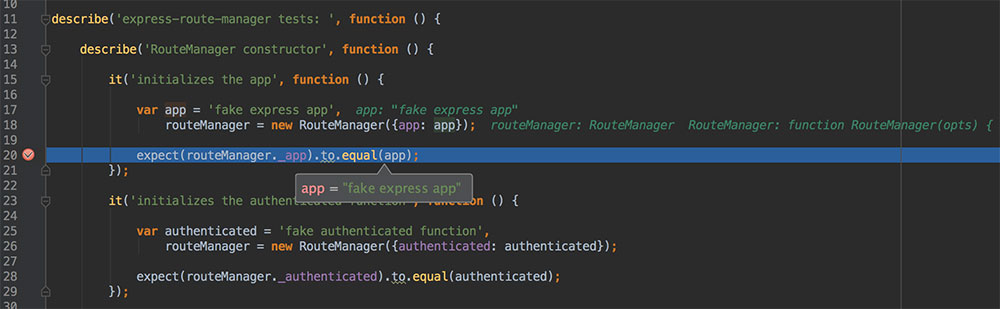
WebStorm is my IDE of choice when it comes to debugging Node apps. Read on if you haven’t configured Mocha Tests debugging yet.
1) Prerequisites:
- Application with Mocha Unit Tests
- WebStorm with Node plugin enabled
2) Add Mocha to your Run/Debug Configurations
Open the Edit Run/Debug Configurations Dialog:
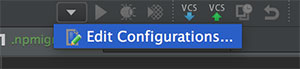
Or go to Run | Edit Configurations ...
Then Add a new Mocha Configuration:
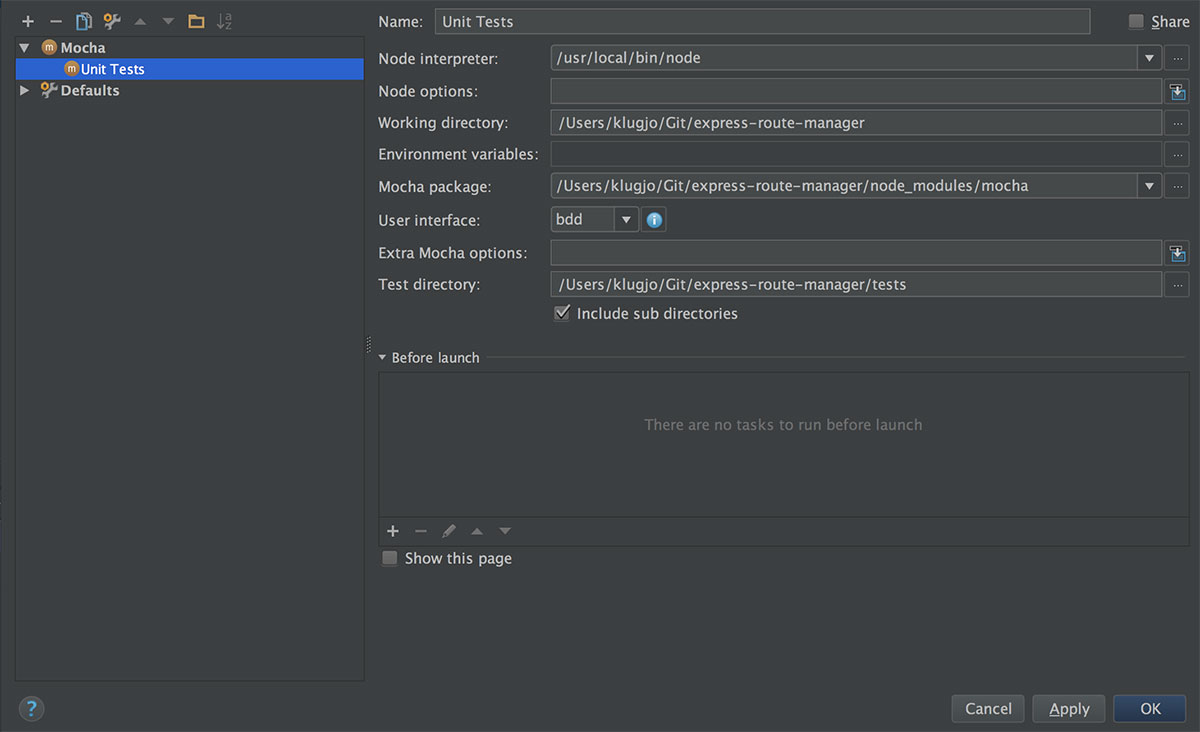
If node is configured properly in WebStorm, you should only have to edit the Name and Test directory which is the path to your tests folder.
The following fields are mandatory:
Node Interpreterpath to Node on your machine.Working Directorypath to your project directory.Mocha Packagepath to Mocha installation home. If you installed Mocha through npm, WebStorm will detect it automatically.User Interfaceselect the Mocha Interface that corresponds to the way your wrote your tests.Test Directorypath to your test folder.
Press OK.
3) Run or Debug your tests
Make sure your have your unit test config selected in the Run/Debug Configuration
Press the Run button or ^R to run your tests:
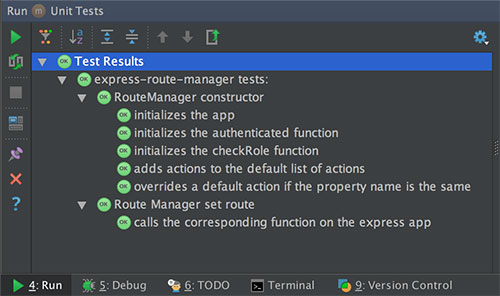
Press the Debug button or ^D to debug your tests